

- Chkk CLI
- Cluster Connector
- MCP Servers
- Linux
- MacOS
- Windows
Install a pre-built binary on Linux using the following instructions.Or using Brew with a single command.
# For AMD64 / x86_64
[ $(uname -m) = x86_64 ] && curl -Lo ./chkk https://cli.chkk.io/download/latest/chkk-linux-amd64
# For ARM64
[ $(uname -m) = aarch64 ] && curl -Lo ./chkk https://cli.chkk.io/download/latest/chkk-linux-arm64
chmod +x ./chkk
sudo mv ./chkk /usr/local/bin/chkk
brew install chkk-io/cli/chkk
Install using Homebrew on MacOS.Or install a pre-built binary using the following instructions.
brew install chkk-io/cli/chkk
# For Intel Macs
[ $(uname -m) = x86_64 ] && curl -Lo ./chkk https://cli.chkk.io/download/latest/chkk-darwin-amd64
# For M1 / ARM Macs
[ $(uname -m) = arm64 ] && curl -Lo ./chkk https://cli.chkk.io/download/latest/chkk-darwin-arm64
chmod +x ./chkk
mv ./chkk /some-dir-in-your-PATH/chkk
Install a pre-built binary on Windows in PowerShell.
curl.exe -Lo chkk-windows-amd64.exe https://cli.chkk.io/download/latest/chkk-windows-amd64
Move-Item .\chkk-windows-amd64.exe c:\some-dir-in-your-PATH\chkk.exe
chkk start
Supported install modes: Helm, K8s YAML, Terraform. See the full Connector page for requirements and configuration examples.
1
Log in to the Chkk Dashboard
Visit https://app.chkk.io and sign in using one of the given methods.
2
Open the Add Cluster view
In the Chkk Dashboard, go to Risk Ledger → Clusters and click Add Cluster, located at the top right.
3
Choose your installation method
You have the option to onboard a cluster either using Helm, Kubernetes YAML, or Terraform.
4
Prepare prerequisites
Make sure outbound access to
chkk.io and s3.amazonaws.com is allowed.5
Installation
Follow the step-by-step flow for your chosen install method to install the Chkk Kubernetes Connector.
6
Validation
Ensure that all the pods in the
chkk-system namespace are in a healthy state and that the chkk-agent pod runs to completion.
On the Chkk Dashboard, you will see a Cluster card get created in the Risk Ledger → Clusters view.
Once the scan completes, you will be able to see all the Operational Risks detected in your environment, broken by risk categories.- Upgrade Agent
- Risk Feed MCP
- Cursor + Chkk
- Claude Code + Chkk
Prerequisites
- Install Docker: Required to run the Chkk-Upgrade-Context-MCP Server.
- Install Cursor: Required to begin generating environment-aware pull requests.
1
Retrieve your Chkk Access Token
- In the Chkk Dashboard, expand Configure on the left menu and click Settings.
- Select the Tokens tab. Here you’ll see a list of all your active tokens (if any), along with options to create new ones or revoke existing ones.
-
Click on the clipboard icon next to a token to copy it.
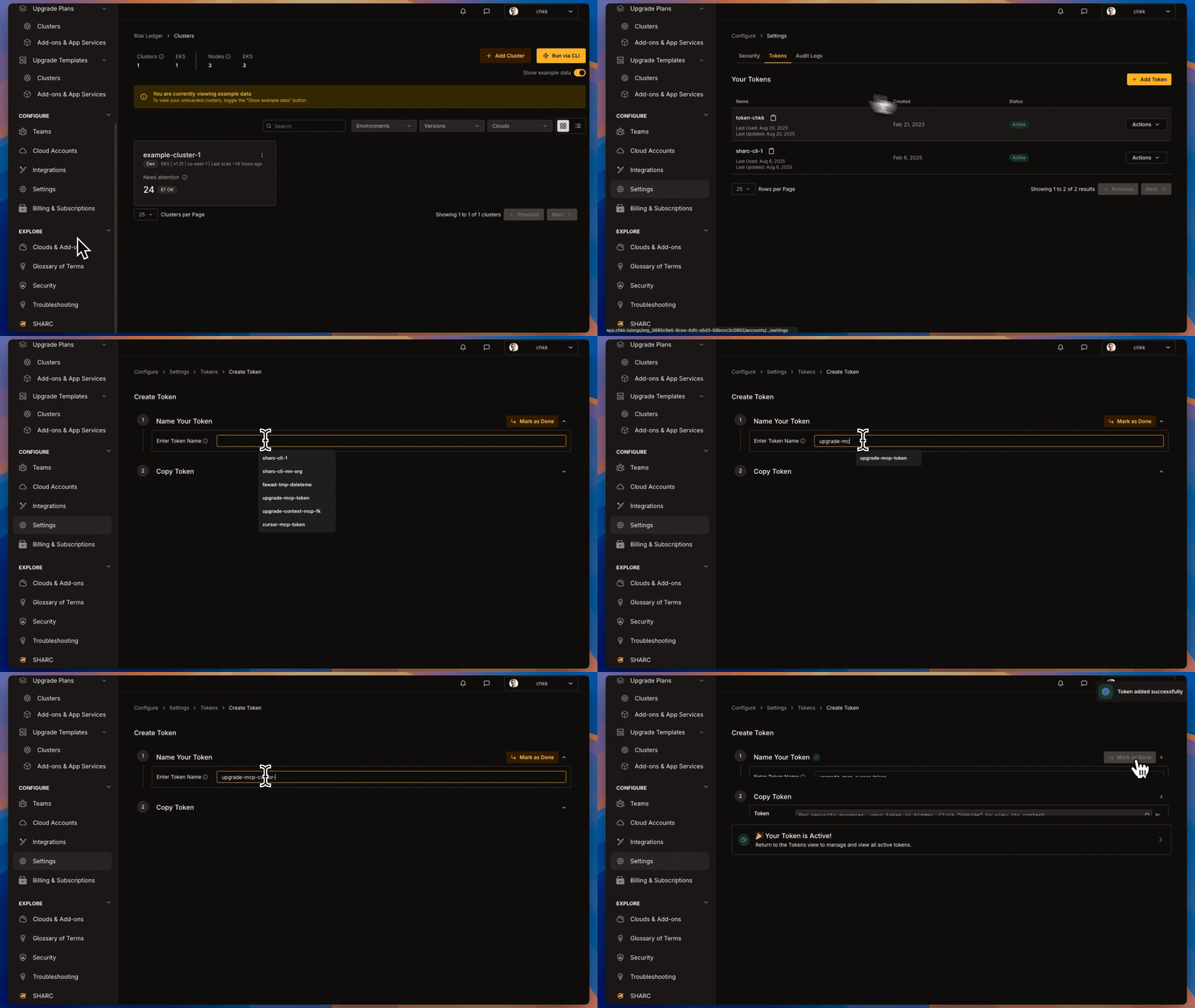
2
Install in Cursor via deeplink
Click the card below to install the Chkk Upgrade Context MCP Server in Cursor.
Add Chkk to Cursor
Click here to add Chkk to your Cursor
3
Configure your Chkk Access Token
Paste your Chkk Access Token in the 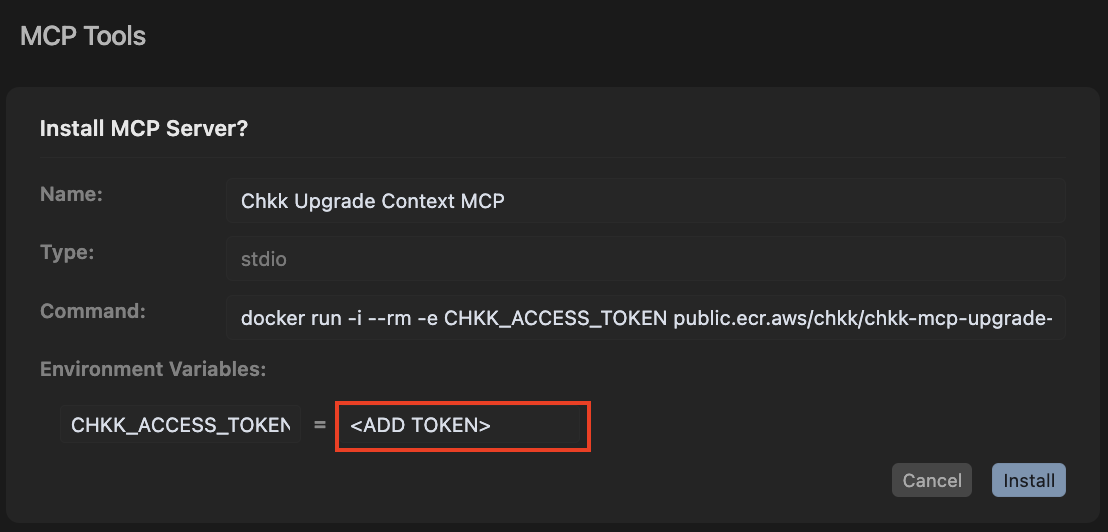
CHKK_ACCESS_TOKEN environment variable
in the MCP Tool Settings opened via the deeplink in the previous step.4
Verify Chkk Upgrade Context MCP Server is installed
Verify in MCP Tool Settings that Chkk Upgrade Context MCP Server is
successfully installed and enabled. 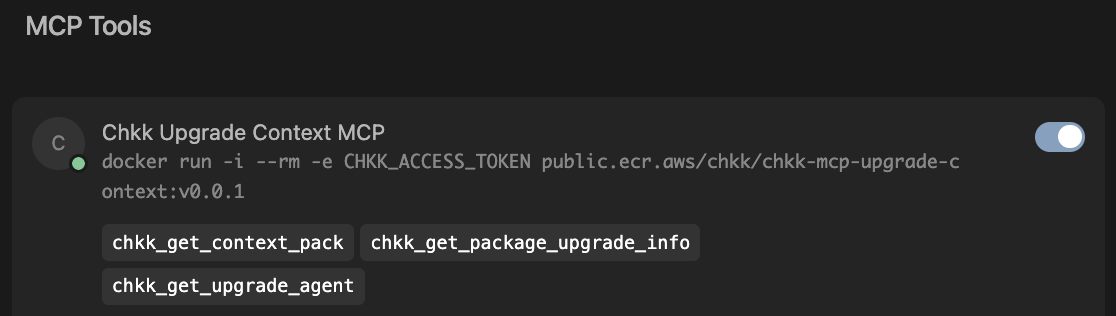
Prerequisites
- Install Docker: Required to run the Chkk-Upgrade-Context-MCP Server.
- Install Claude Code: Required to begin generating environment-aware pull requests.
- A Claude.ai (recommended) or Anthropic Console account
1
Retrieve your Chkk Access Token
- In the Chkk Dashboard, expand Configure on the left menu and click Settings.
- Select the Tokens tab. Here you’ll see a list of all your active tokens (if any), along with options to create new ones or revoke existing ones.
-
Click on the clipboard icon next to a token to copy it.
2
Install in Claude Code
Install the Replace
Chkk-Upgrade-Context-MCP using the Claude Code CLI:claude mcp add Chkk-Upgrade-Context-MCP --env CHKK_ACCESS_TOKEN="<CHKK_TOKEN>" -- docker run -i --rm -e CHKK_ACCESS_TOKEN public.ecr.aws/chkk/chkk-mcp-upgrade-context:latest
<CHKK_TOKEN> with your Chkk Access Token.3
Verify Chkk-Upgrade-Context-MCP Server is installed
Verify via CLI that the server is registered:The command should return server details indicating it is installed and enabled.
claude mcp get Chkk-Upgrade-Context-MCP
1
Download the MCP server
Download the latest Risk Feed MCP Server binary for your platform:After downloading:
macOS
Apple Silicon
M1/M2/M3 and newer
M1/M2/M3 and newer
Linux
ARM 64-bit servers
Windows
Intel/AMD 64-bit PCs
- Unzip the downloaded binary
- (macOS/Linux) Make the binary executable:
chmod +x ./chkk-mcp-*
2
Wire it into Cursor
In your repo, create or edit
.cursor/mcp.json (example for macOS Apple Silicon):{
"mcpServers": {
"chkk-mcp-stdio": {
"command": "./bin/chkk-mcp-darwin-arm64",
"args": ["serve"]
}
}
}
3
Start & test
Cursor will launch the server automatically and prompt you to enable the tool. Start a chat and try a simple risk lookup to confirm.