> ## Documentation Index
> Fetch the complete documentation index at: https://docs.chkk.io/llms.txt
> Use this file to discover all available pages before exploring further.
# Claude Code + Chkk in 5 minutes
> Use Chkk to provide precise, environment-aware context to plan safe software upgrades and create pull requests with updated configuration files and manifests.
## Prerequisites
1. [Install Docker](https://docs.docker.com/get-docker/): Required to run the Chkk-Upgrade-Context-MCP Server.
2. [Install Claude Code](/resources/installation-guides/claude-code): Required to begin generating environment-aware pull requests.
3. A [Claude.ai](https://claude.ai/) (recommended) or [Anthropic Console](https://console.anthropic.com/) account
Agent Responses on this page are illustrative. Exact phrasing from your AI
model may vary depending on the model, settings, and repository context.
For the best experience, it is recommended to use the **claude-4-sonnet** model with the Chkk-Upgrade-Context-MCP Server.
Run the following command to clone the sample Chkk IaC repo:
```bash theme={"dark"}
git clone git@github.com:chkk-io/upgrade-playground.git && \
cd upgrade-playground
```
1. In the **Chkk Dashboard**, expand **Configure** on the left menu and click **Settings**.
2. Select the **Tokens** tab. Here you'll see a list of all your active tokens (if any), along with options to create new ones or revoke existing ones.
3. Click on the **clipboard** icon next to a token to copy it.
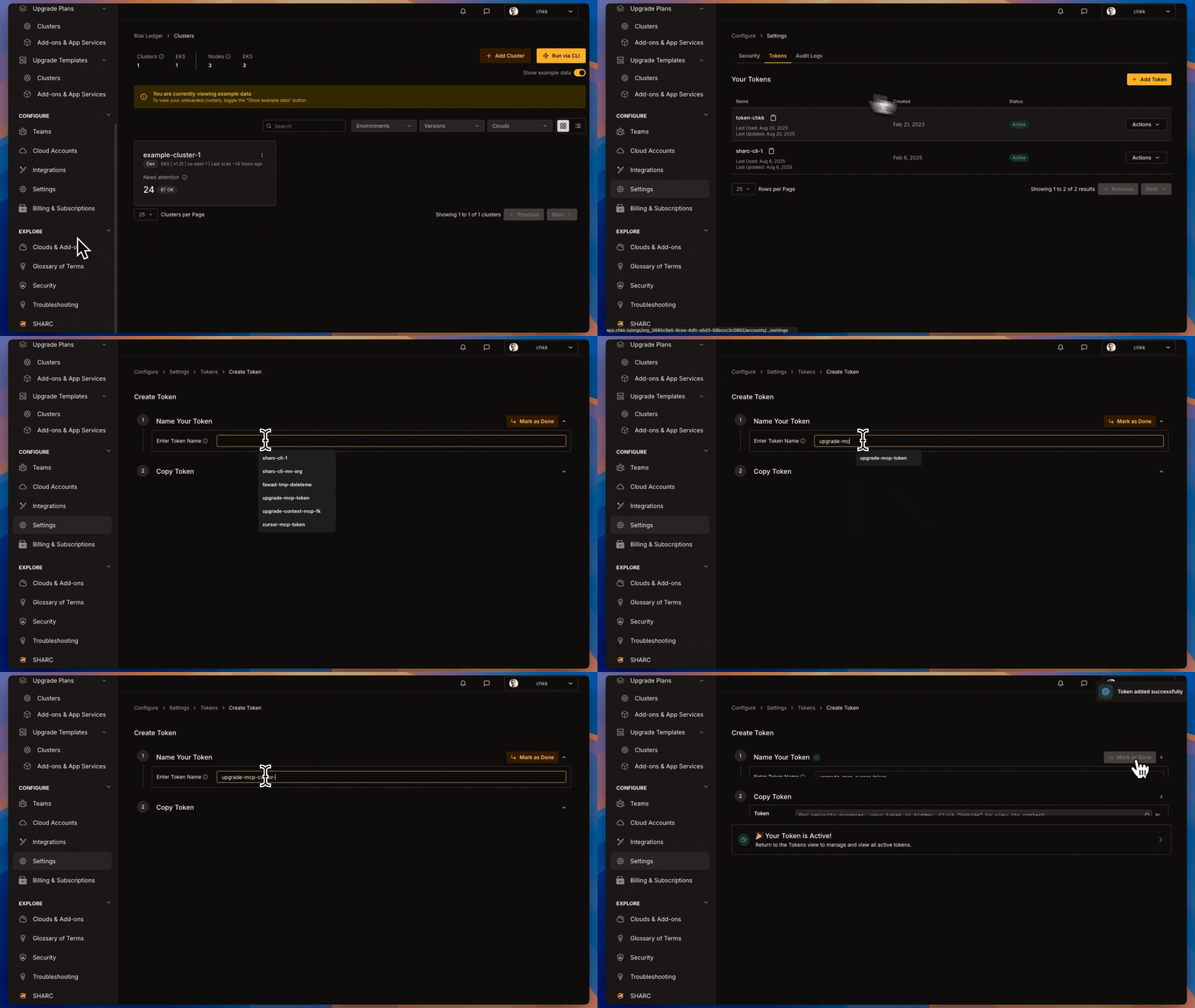 Install the `Chkk-Upgrade-Context-MCP` using the Claude Code CLI:
```bash theme={"dark"}
claude mcp add Chkk-Upgrade-Context-MCP --env CHKK_ACCESS_TOKEN="" -- docker run -i --rm -e CHKK_ACCESS_TOKEN public.ecr.aws/chkk/chkk-mcp-upgrade-context:latest
```
Replace `` with your Chkk Access Token.
Verify via CLI that the server is registered:
```bash theme={"dark"}
claude mcp get Chkk-Upgrade-Context-MCP
```
The command should return server details indicating it is installed and enabled.
Install the `Chkk-Upgrade-Context-MCP` using the Claude Code CLI:
```bash theme={"dark"}
claude mcp add Chkk-Upgrade-Context-MCP --env CHKK_ACCESS_TOKEN="" -- docker run -i --rm -e CHKK_ACCESS_TOKEN public.ecr.aws/chkk/chkk-mcp-upgrade-context:latest
```
Replace `` with your Chkk Access Token.
Verify via CLI that the server is registered:
```bash theme={"dark"}
claude mcp get Chkk-Upgrade-Context-MCP
```
The command should return server details indicating it is installed and enabled.
 1. In the **left-hand column** of the **Chkk Dashboard**, expand **Upgrade Copilot**.
2. Under **Upgrade Plans** select **Add-on & App Services**.
1. In the **left-hand column** of the **Chkk Dashboard**, expand **Upgrade Copilot**.
2. Under **Upgrade Plans** select **Add-on & App Services**.
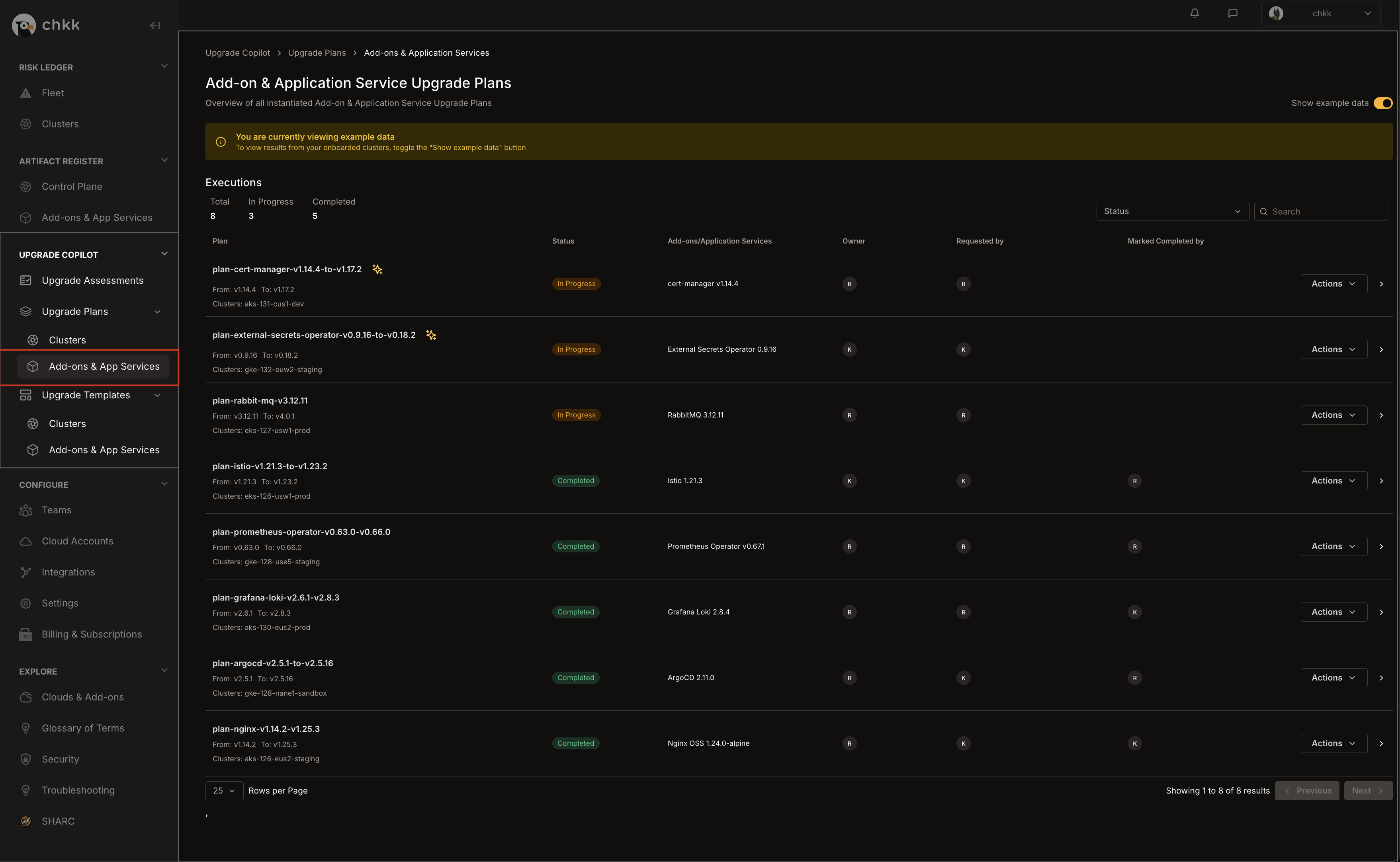 3. On the **Middle Right** corner of the page, enable the **Show Example Data** toggle, as shown in the image below.
4. This will switch the view to only show example data and displays a confirmation banner.
3. On the **Middle Right** corner of the page, enable the **Show Example Data** toggle, as shown in the image below.
4. This will switch the view to only show example data and displays a confirmation banner.
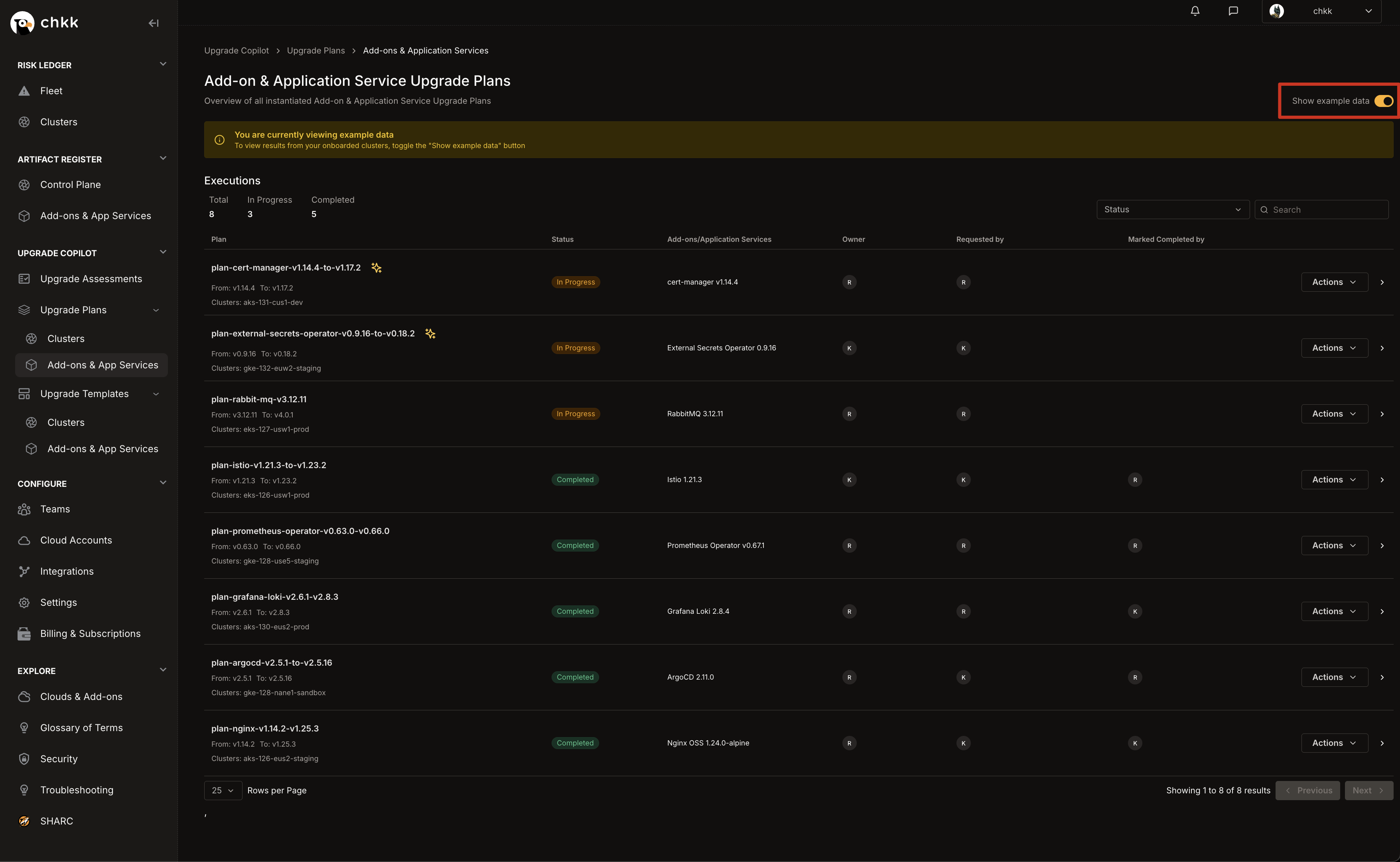 5. In the table below, you will see a list of Projects **Example Upgrade Plans**.
6. Select any Upgrade Plan from the table that has the **AI Context Generated** badge, as shown in the image below.
The **AI Context Generated** badge indicates that these Upgrade Plans are supported by the **Chkk-Upgrade-Context-MCP Server**.
5. In the table below, you will see a list of Projects **Example Upgrade Plans**.
6. Select any Upgrade Plan from the table that has the **AI Context Generated** badge, as shown in the image below.
The **AI Context Generated** badge indicates that these Upgrade Plans are supported by the **Chkk-Upgrade-Context-MCP Server**.
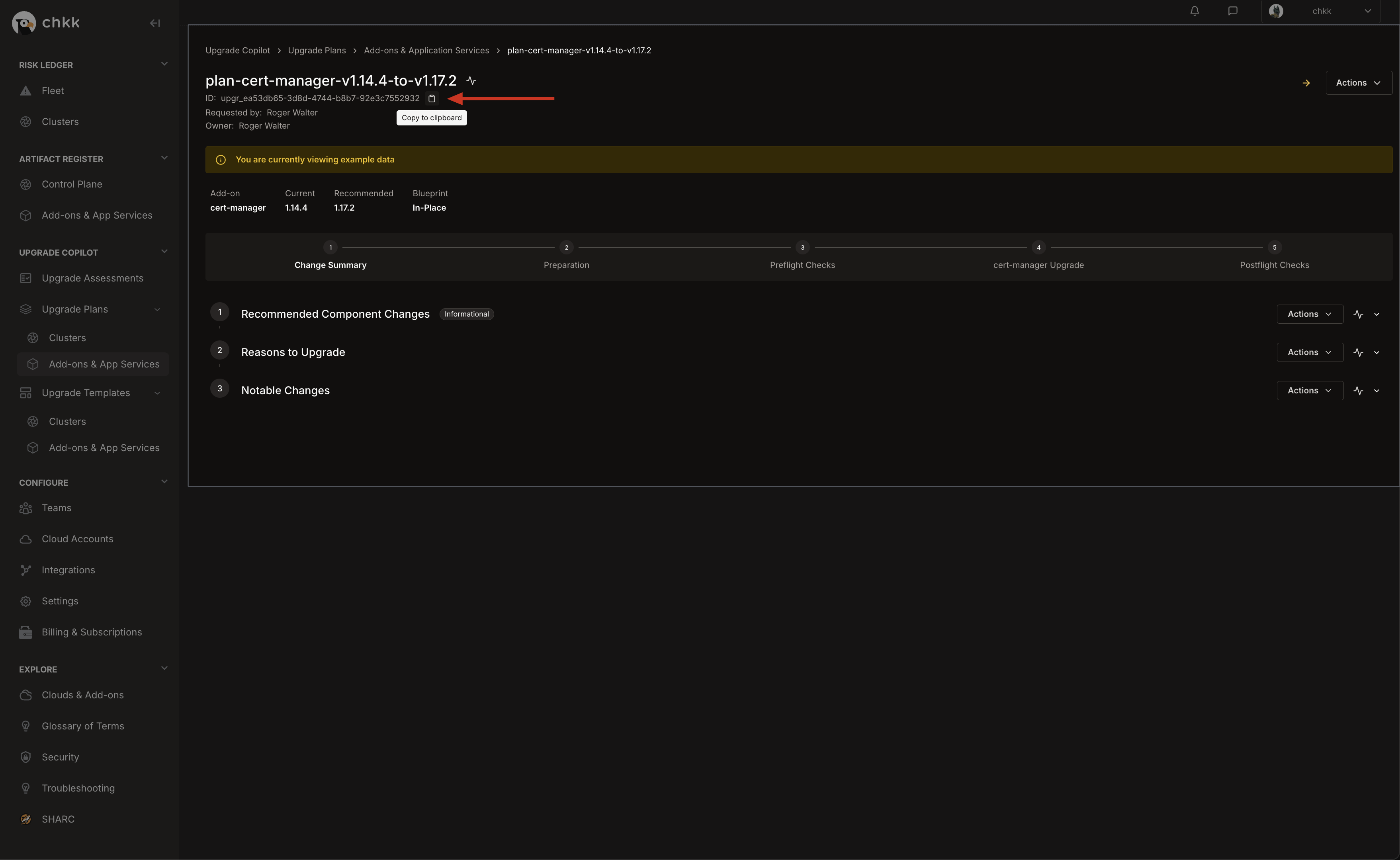
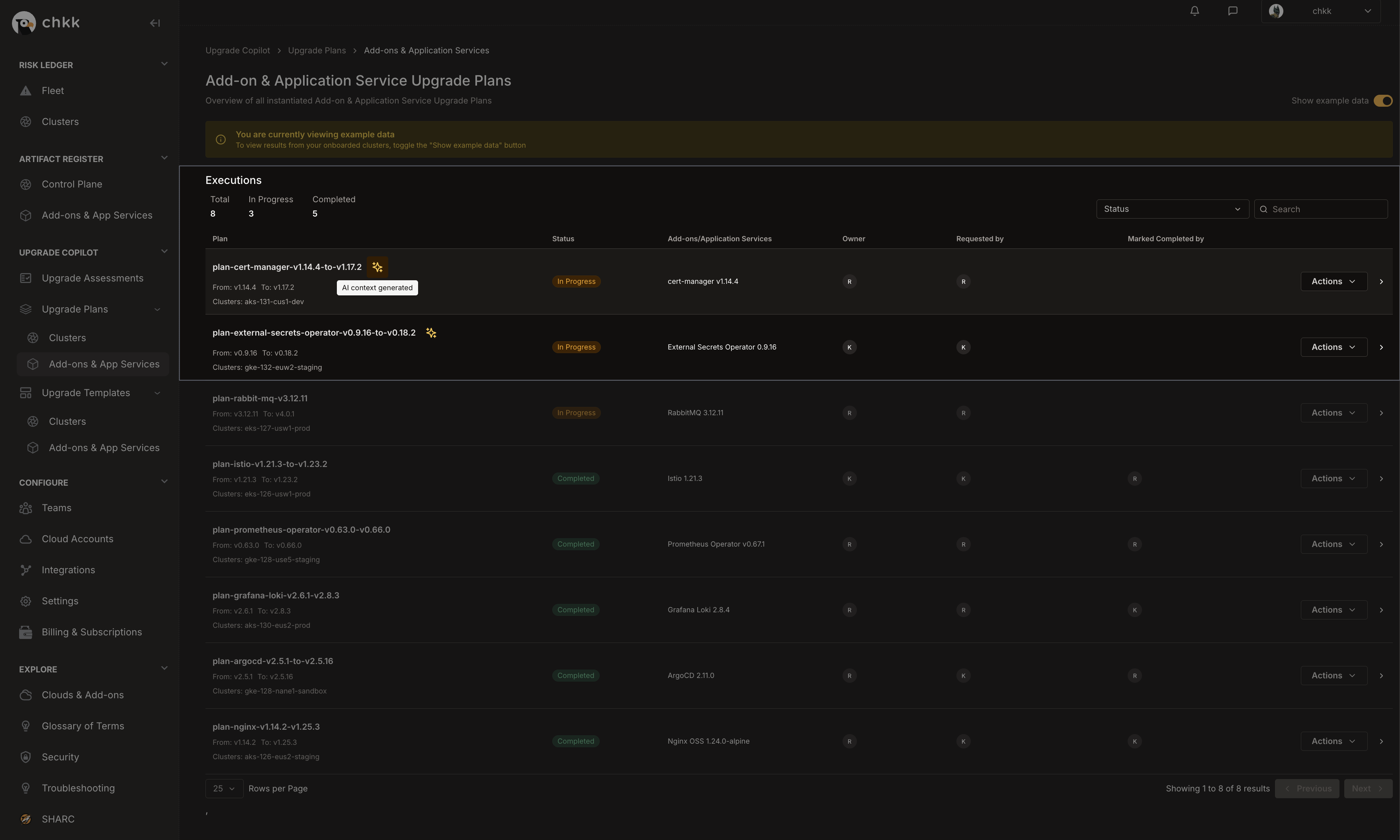 7. At the top of the page, under the name of the Upgrade Plan, you will see the **Upgrade ID**.
8. Click the **clipboard** icon to copy the Upgrade ID to your clipboard.
7. At the top of the page, under the name of the Upgrade Plan, you will see the **Upgrade ID**.
8. Click the **clipboard** icon to copy the Upgrade ID to your clipboard.
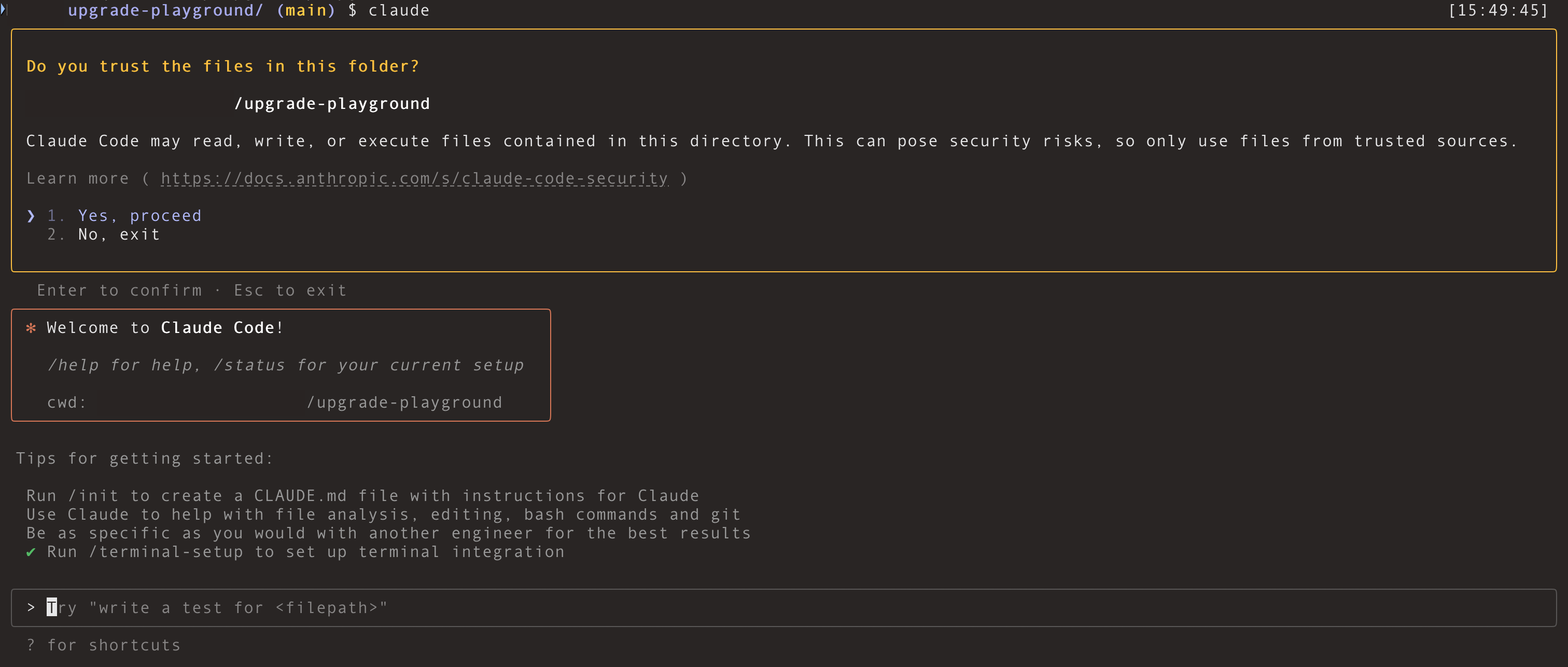
 From inside the `upgrade-playground` directory, start Claude Code.
```bash theme={"dark"}
claude
```
From inside the `upgrade-playground` directory, start Claude Code.
```bash theme={"dark"}
claude
```
 Open a chat in Claude Code and send:
You're in a K8s repo. Fetch "addon-upgrade-agent" from Chkk MCP and upgrade the package listed in the upgrade plan. Start by asking for the upgrade ID.
Your opening prompt is flexible, but it **must** explicitly instruct the assistant to **fetch "addon-upgrade-agent" from Chkk MCP**.
**Agent Response:**
Open a chat in Claude Code and send:
You're in a K8s repo. Fetch "addon-upgrade-agent" from Chkk MCP and upgrade the package listed in the upgrade plan. Start by asking for the upgrade ID.
Your opening prompt is flexible, but it **must** explicitly instruct the assistant to **fetch "addon-upgrade-agent" from Chkk MCP**.
**Agent Response:**
 Paste your **upgrade ID** (from your instantiated [Project Upgrade Plan](/resources/glossary#project-upgrade-plan)), for example:
upgr\_ea53db65-3d8d-4744-b8b7-92e3c7552932
**Agent Response:**
Paste your **upgrade ID** (from your instantiated [Project Upgrade Plan](/resources/glossary#project-upgrade-plan)), for example:
upgr\_ea53db65-3d8d-4744-b8b7-92e3c7552932
**Agent Response:**
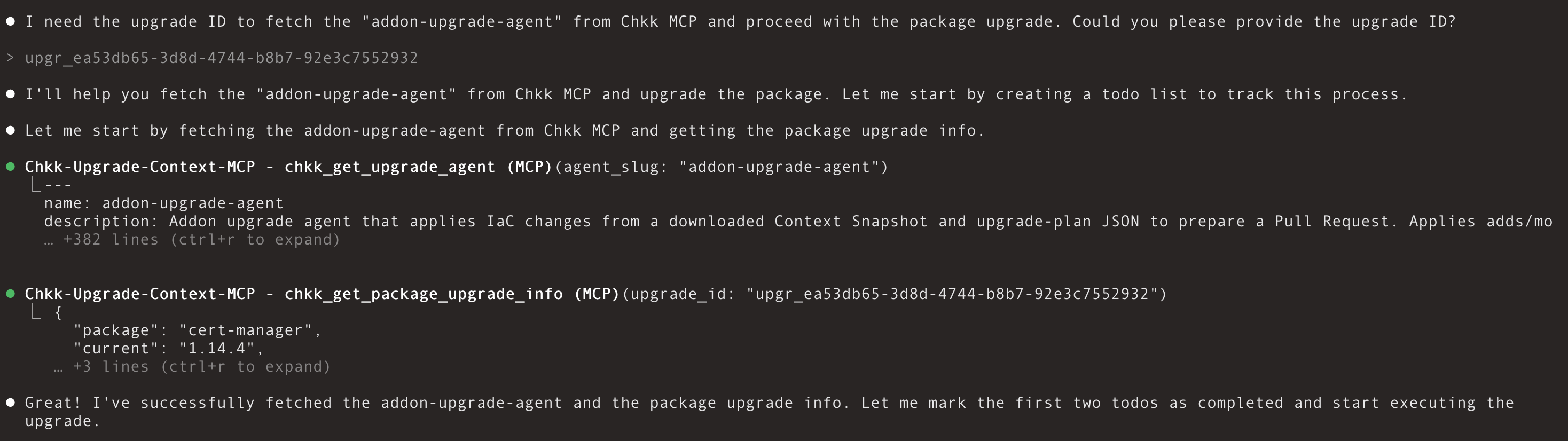 The assistant will fetch Upgrade Context, stage artifacts in a local **Scratchpad** (`.chkk/scratchpad/upgrade-agent/` in the current working directory),
apply targeted edits (`Chart.yaml`, `values.yaml`, minimal templates), and summarize the changes it has made.
**Agent Response:**
The assistant will fetch Upgrade Context, stage artifacts in a local **Scratchpad** (`.chkk/scratchpad/upgrade-agent/` in the current working directory),
apply targeted edits (`Chart.yaml`, `values.yaml`, minimal templates), and summarize the changes it has made.
**Agent Response:**
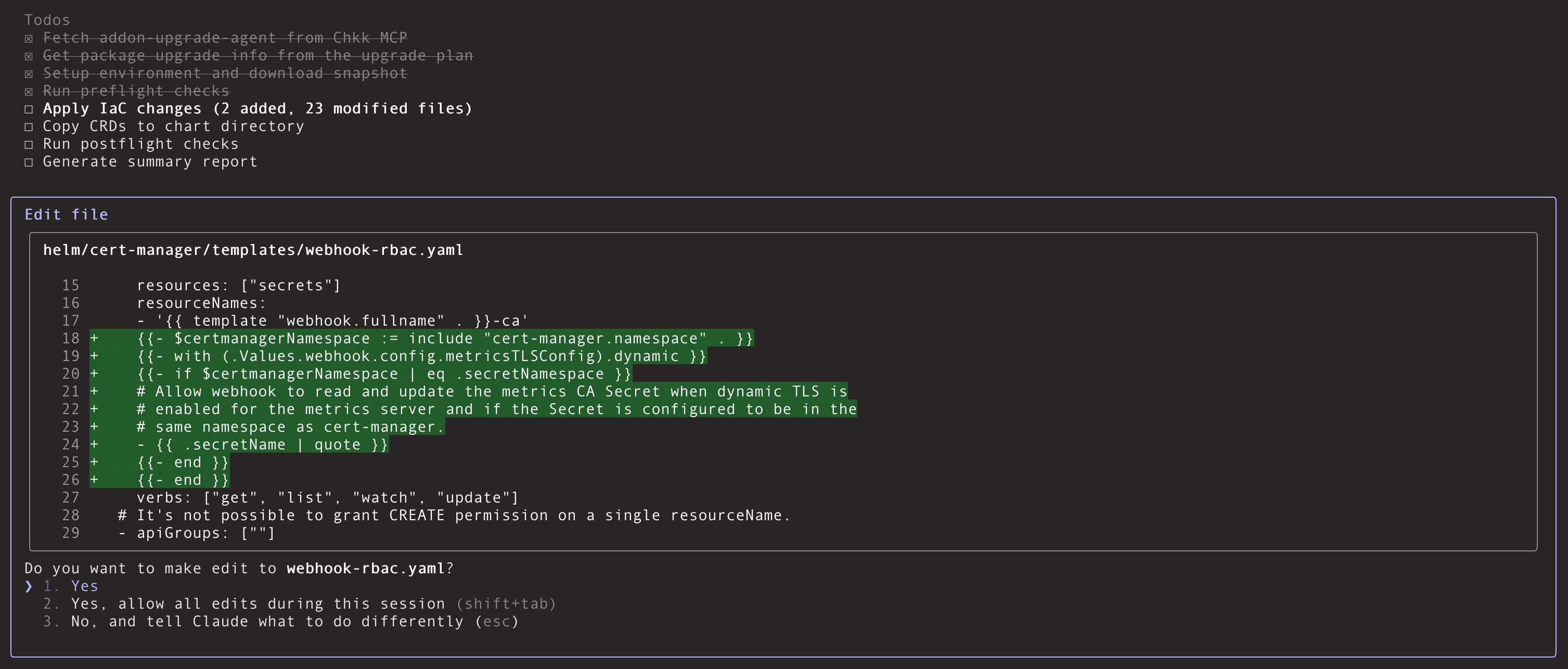
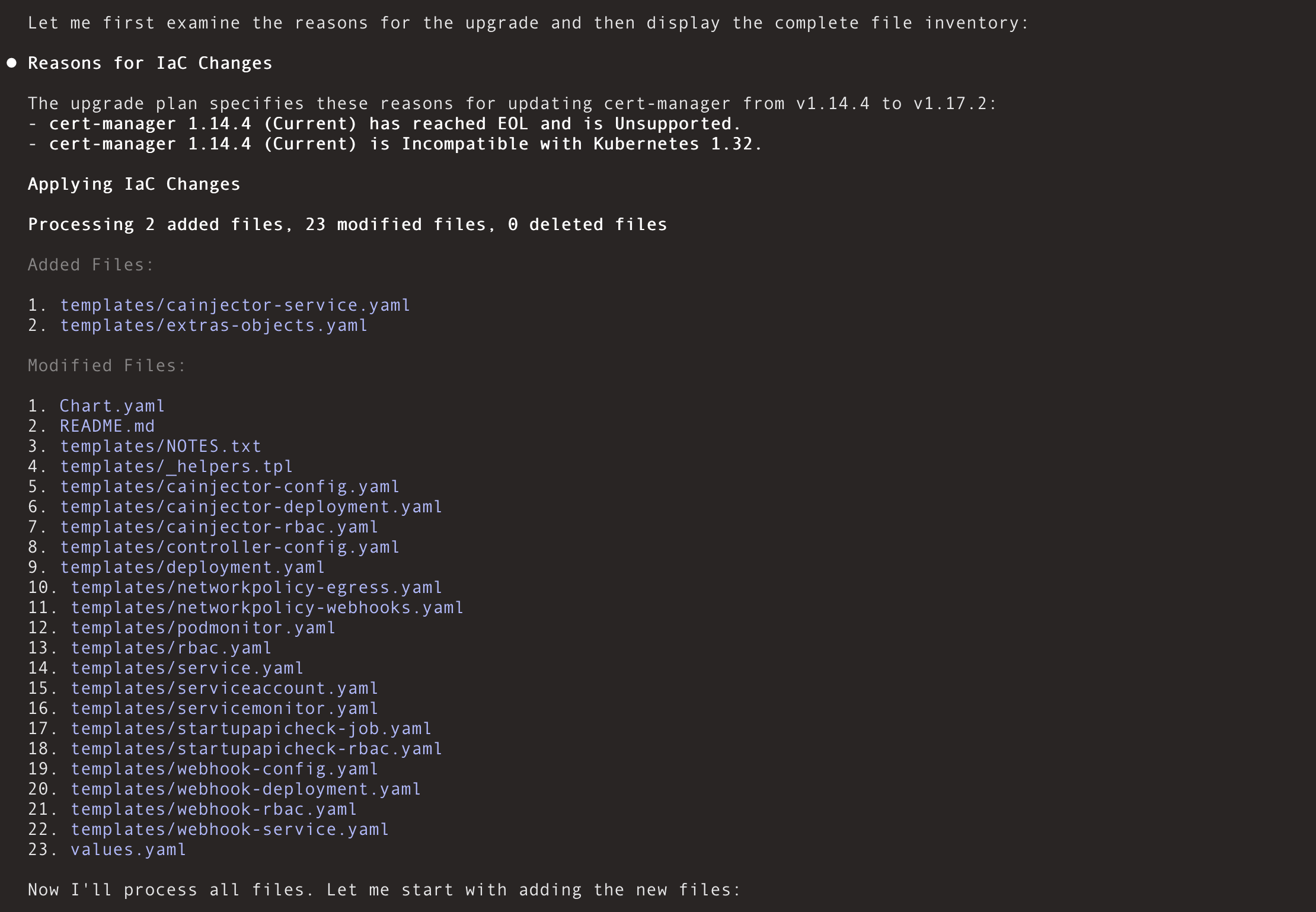 To ensure your model is not overwhelmed by the task scope, any modifications are processed in batches of 5 files at a time.
You can now review the changes made within each file, which you would have
otherwise would have had to do manually.
**Agent Response:**
To ensure your model is not overwhelmed by the task scope, any modifications are processed in batches of 5 files at a time.
You can now review the changes made within each file, which you would have
otherwise would have had to do manually.
**Agent Response:**
 Learn more in the [Upgrade Agent guide](/ai/upgrade-agent).
## Next steps
* Add your own upgrade plans in Chkk and repeat the flow
* Enable auto-confirm in trusted repos for zero-click edits
Learn more in the [Upgrade Agent guide](/ai/upgrade-agent).
## Next steps
* Add your own upgrade plans in Chkk and repeat the flow
* Enable auto-confirm in trusted repos for zero-click edits