> ## Documentation Index
> Fetch the complete documentation index at: https://docs.chkk.io/llms.txt
> Use this file to discover all available pages before exploring further.
# Approve Upgrade Template
> A brief description, use-case, and usage instructions for the Approve Upgrade Template feature
Chkk's **Approve Upgrade Template** feature ensures that each Upgrade Template is thoroughly reviewed, adjusted to align with organizational guidelines, and officially marked as ready for use. Once an Upgrade Template is **Available**, users can add custom steps, confirm which Cloud Native Project, application service, and operator versions to upgrade now versus later, and apply internal change-management standards.
After all necessary adjustments are in place, the user marks the upgrade template as **Approved for Use**. Chkk automatically logs who approved the upgrade template, giving the entire team visibility into its readiness. This standardized approach **reduces context switching**, **preserves knowledge**, and **promotes the reuse of best practices**—enabling faster upgrades across multiple clusters and ensuring **consistent workflows** organization-wide.
## Usage
The provided steps also apply to Project Upgrade Templates.
Follow the steps below to **Approve a Cluster Upgrade Template**:
1. In the **left-hand column** of the **Chkk Dashboard**, expand **Upgrade Copilot**.
2. Click **Upgrade Templates**, then select **Clusters**.
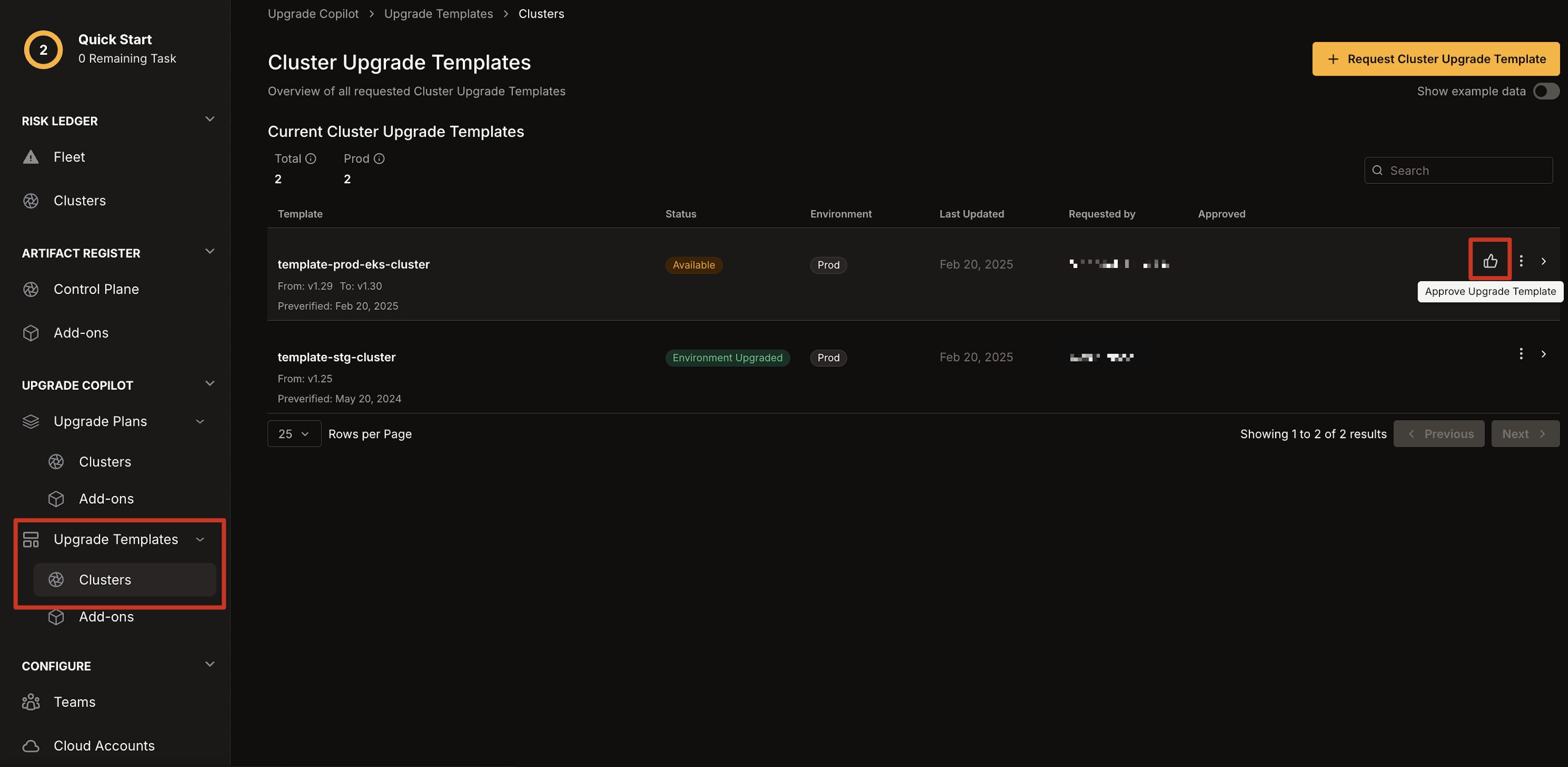 1. Navigate to the **Upgrade Template** you want to approve.
2. Click the **thumbs up** icon to approve it.
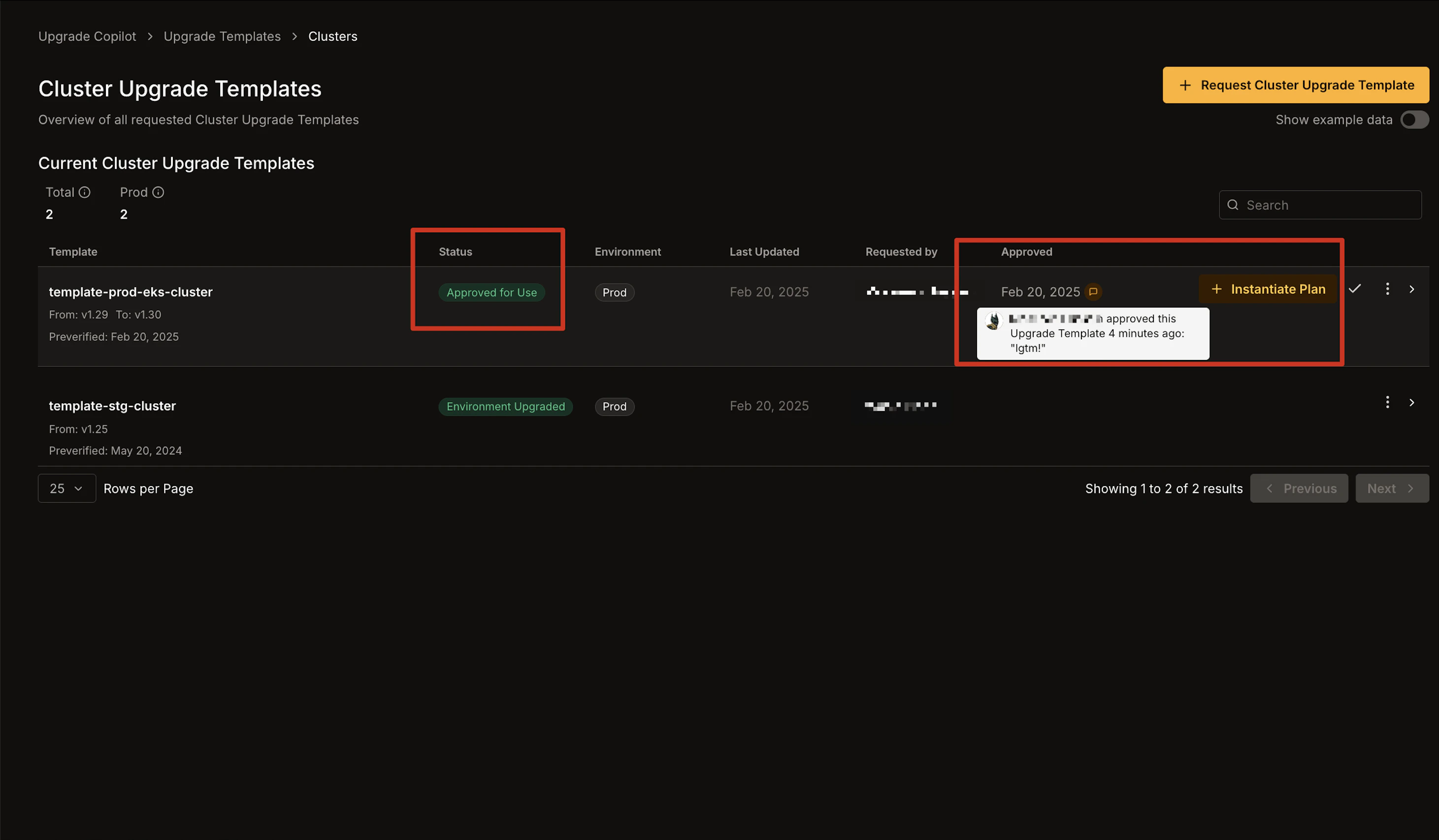
1. Once approved, the upgrade template's status changes to **Approved for
Use**. 2. The approval date appears under the **Approved** column, along with
any comments made by the approver.
1. After approval, a new **CTA Button** will appear, allowing you to [Instantiate Upgrade Plans](/features/instantiate-template-to-plan) from the approved Upgrade Template.
1. Navigate to the **Upgrade Template** you want to approve.
2. Click the **thumbs up** icon to approve it.
1. Once approved, the upgrade template's status changes to **Approved for
Use**. 2. The approval date appears under the **Approved** column, along with
any comments made by the approver.
1. After approval, a new **CTA Button** will appear, allowing you to [Instantiate Upgrade Plans](/features/instantiate-template-to-plan) from the approved Upgrade Template.