> ## Documentation Index
> Fetch the complete documentation index at: https://docs.chkk.io/llms.txt
> Use this file to discover all available pages before exploring further.
# Claude Code + Chkk
> A walkthrough of using Claude Code with Chkk Upgrade Agent to produce environment-aware IaC pull requests
Agent Responses on this page are illustrative. Exact phrasing from your AI
model may vary depending on the model, settings, and repository context.
For the best experience, it is recommended to use the **claude-4-sonnet** model with the Chkk-Upgrade-Context-MCP Server.
This guide shows how to use **Claude Code** with the **Chkk-Upgrade-Context-MCP** to generate precise, environment-aware diffs and apply them to your Cloud Native Project IaC (e.g., Helm).
For a deep conceptual overview of how the Upgrade Agent works (powered by the Upgrade Context MCP server), see **[Upgrade Agent](/ai/upgrade-agent)** first.
## Prerequisites
1. [Install Docker](https://docs.docker.com/get-docker/): Required to run the Chkk-Upgrade-Context-MCP Server.
2. [Install Claude Code](/resources/installation-guides/claude-code): Required to begin generating environment-aware pull requests.
3. A [Claude.ai](https://claude.ai/) (recommended) or [Anthropic Console](https://console.anthropic.com/) account
## Initialization of Chkk Upgrade Agent
Run the following command to clone the sample Chkk IaC repo:
```bash theme={"dark"}
git clone git@github.com:chkk-io/upgrade-playground.git && \
cd upgrade-playground
```
1. In the **Chkk Dashboard**, expand **Configure** on the left menu and click **Settings**.
2. Select the **Tokens** tab. Here you'll see a list of all your active tokens (if any), along with options to create new ones or revoke existing ones.
3. Click on the **clipboard** icon next to a token to copy it.
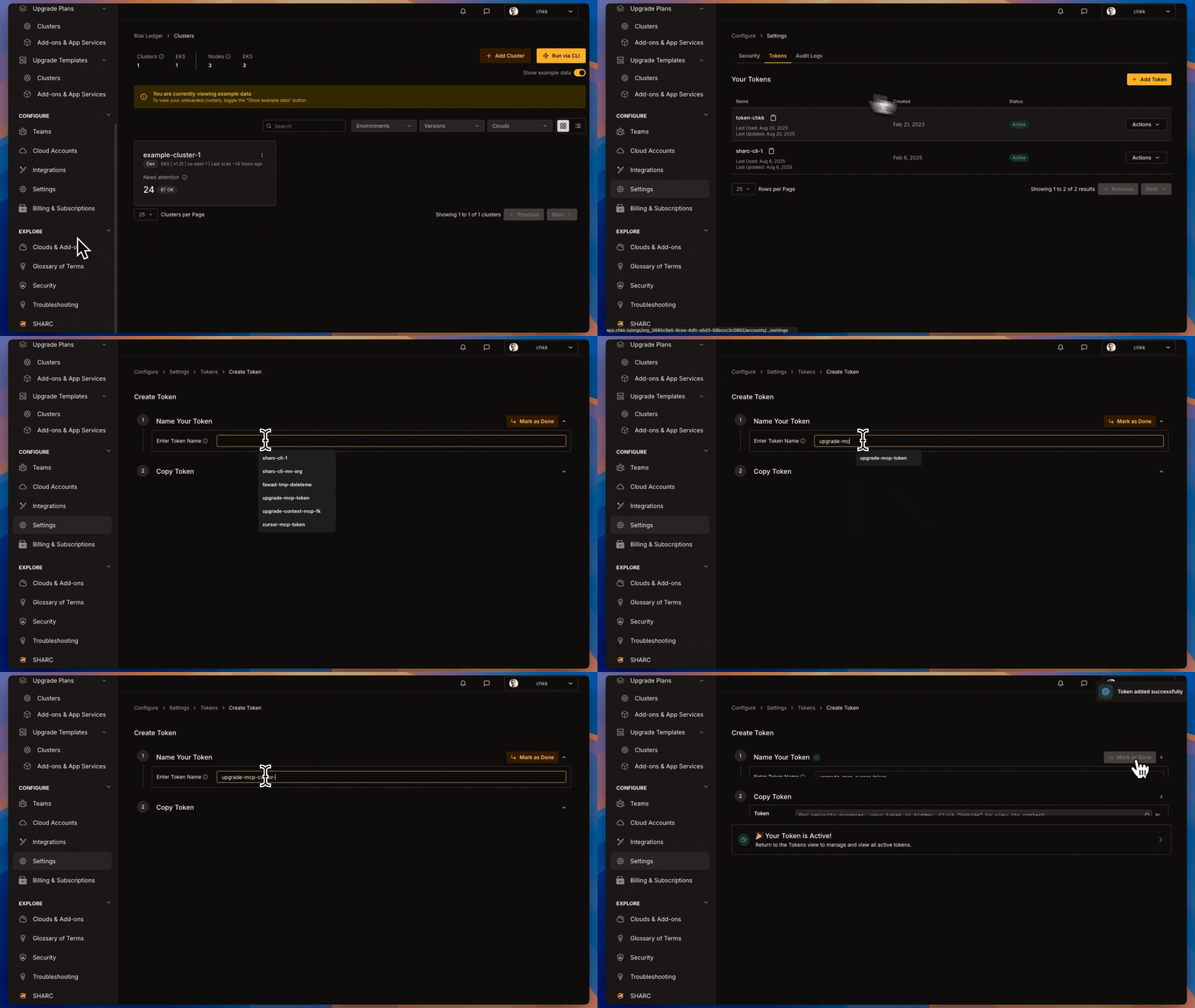 Install the `Chkk-Upgrade-Context-MCP` using the Claude Code CLI:
```bash theme={"dark"}
claude mcp add Chkk-Upgrade-Context-MCP --env CHKK_ACCESS_TOKEN="" -- docker run -i --rm -e CHKK_ACCESS_TOKEN public.ecr.aws/chkk/chkk-mcp-upgrade-context:latest
```
Replace `` with your Chkk Access Token.
Verify via CLI that the server is registered:
```bash theme={"dark"}
claude mcp get Chkk-Upgrade-Context-MCP
```
The command should return server details indicating it is installed and enabled.
Install the `Chkk-Upgrade-Context-MCP` using the Claude Code CLI:
```bash theme={"dark"}
claude mcp add Chkk-Upgrade-Context-MCP --env CHKK_ACCESS_TOKEN="" -- docker run -i --rm -e CHKK_ACCESS_TOKEN public.ecr.aws/chkk/chkk-mcp-upgrade-context:latest
```
Replace `` with your Chkk Access Token.
Verify via CLI that the server is registered:
```bash theme={"dark"}
claude mcp get Chkk-Upgrade-Context-MCP
```
The command should return server details indicating it is installed and enabled.
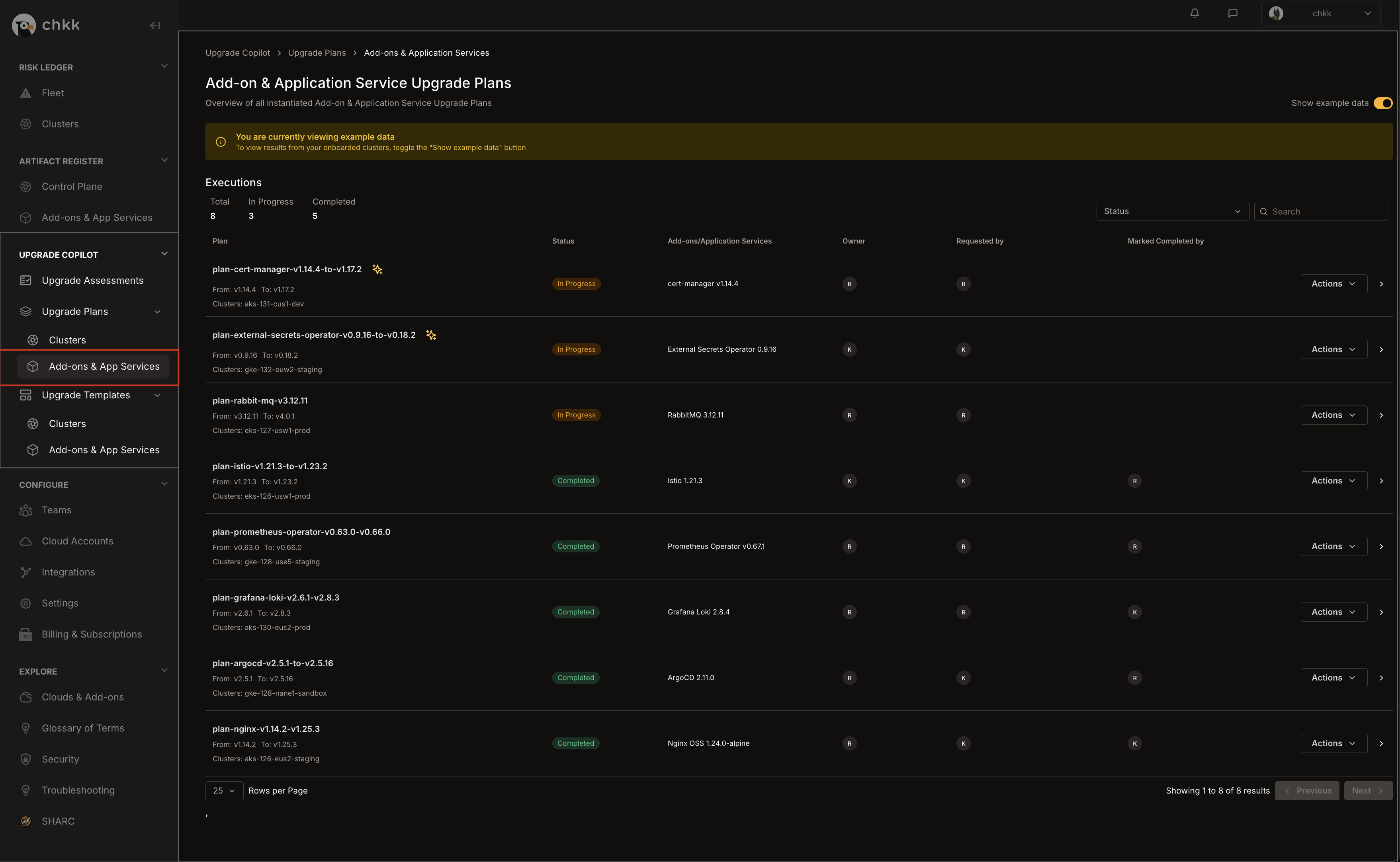
 1. In the **left-hand column** of the **Chkk Dashboard**, expand **Upgrade Copilot**.
2. Under **Upgrade Plans** select **Add-on & App Services**.
1. In the **left-hand column** of the **Chkk Dashboard**, expand **Upgrade Copilot**.
2. Under **Upgrade Plans** select **Add-on & App Services**.
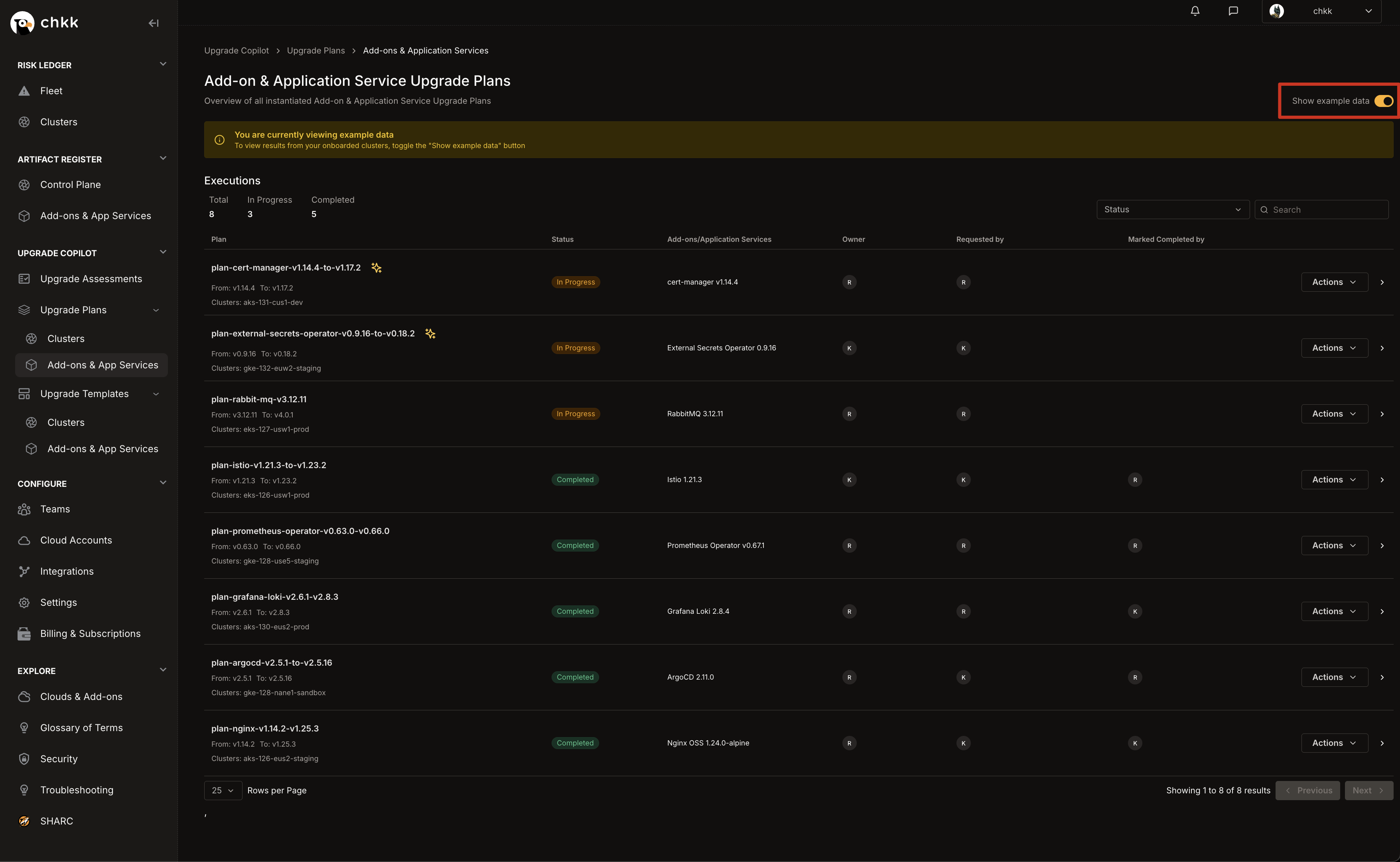
 3. On the **Middle Right** corner of the page, enable the **Show Example Data** toggle, as shown in the image below.
4. This will switch the view to only show example data and displays a confirmation banner.
3. On the **Middle Right** corner of the page, enable the **Show Example Data** toggle, as shown in the image below.
4. This will switch the view to only show example data and displays a confirmation banner.
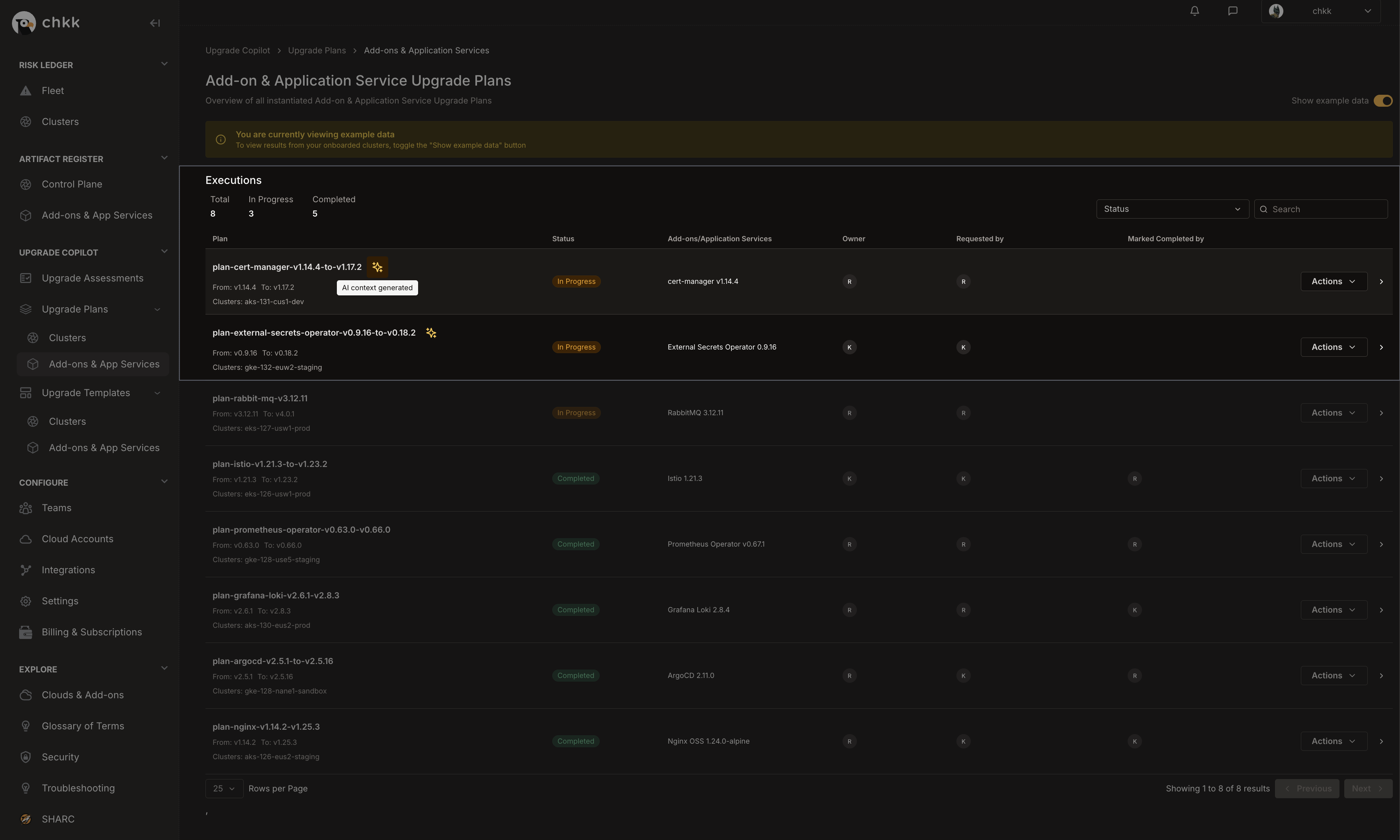
 5. In the table below, you will see a list of Projects **Example Upgrade Plans**.
6. Select any Upgrade Plan from the table that has the **AI Context Generated** badge, as shown in the image below.
The **AI Context Generated** badge indicates that these Upgrade Plans are supported by the **Chkk-Upgrade-Context-MCP Server**.
5. In the table below, you will see a list of Projects **Example Upgrade Plans**.
6. Select any Upgrade Plan from the table that has the **AI Context Generated** badge, as shown in the image below.
The **AI Context Generated** badge indicates that these Upgrade Plans are supported by the **Chkk-Upgrade-Context-MCP Server**.
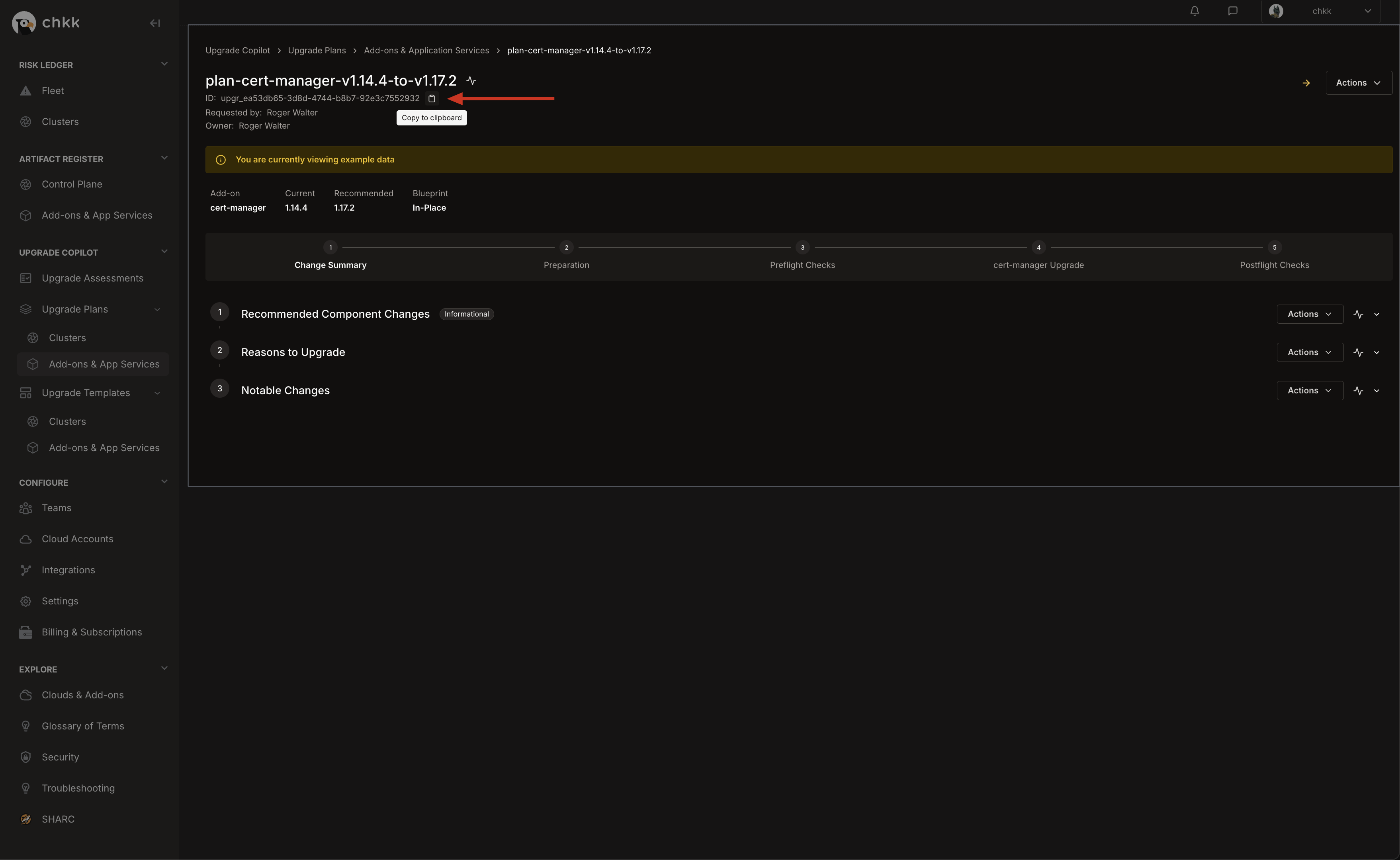
 7. At the top of the page, under the name of the Upgrade Plan, you will see the **Upgrade ID**.
8. Click the **clipboard** icon to copy the Upgrade ID to your clipboard.
7. At the top of the page, under the name of the Upgrade Plan, you will see the **Upgrade ID**.
8. Click the **clipboard** icon to copy the Upgrade ID to your clipboard.
 * Open Claude Code and start a new chat from your IaC repo root.
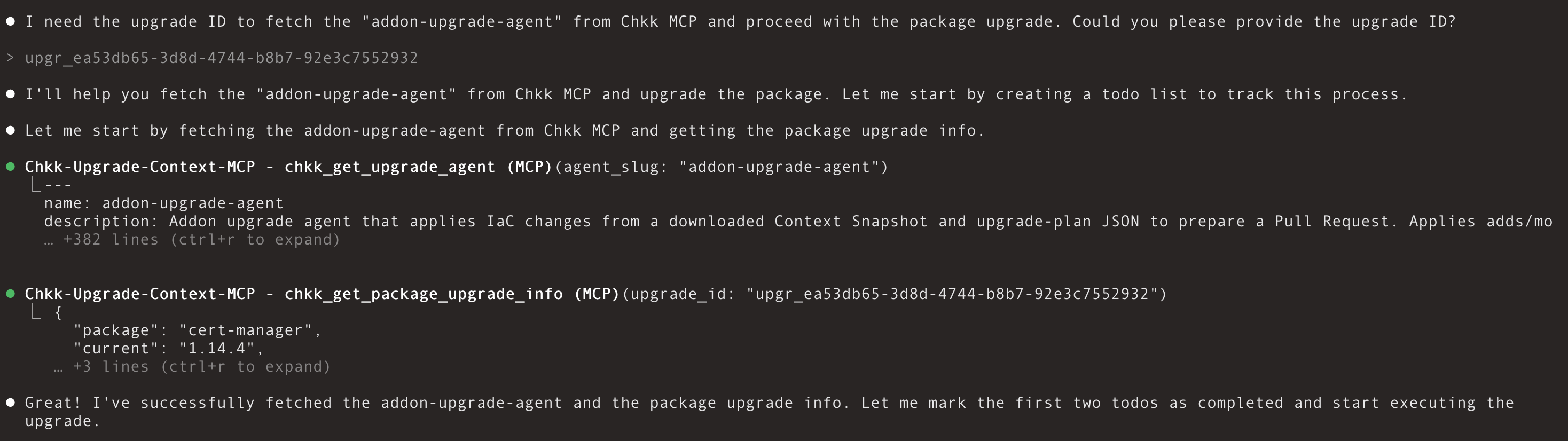
Open a chat in Claude Code and send:
You're in a K8s repo. Fetch "addon-upgrade-agent" from Chkk MCP and upgrade the package listed in the upgrade plan. Start by asking for the upgrade ID.
Your opening prompt is flexible, but it **must** explicitly instruct the assistant to **fetch "addon-upgrade-agent" from Chkk MCP**.
**Agent Response:**
* Open Claude Code and start a new chat from your IaC repo root.
Open a chat in Claude Code and send:
You're in a K8s repo. Fetch "addon-upgrade-agent" from Chkk MCP and upgrade the package listed in the upgrade plan. Start by asking for the upgrade ID.
Your opening prompt is flexible, but it **must** explicitly instruct the assistant to **fetch "addon-upgrade-agent" from Chkk MCP**.
**Agent Response:**
 Paste your **upgrade ID** (from your instantiated [Project Upgrade Plan](/resources/glossary#project-upgrade-plan)), for example:
upgr\_ea53db65-3d8d-4744-b8b7-92e3c7552932
**Agent Response:**
Paste your **upgrade ID** (from your instantiated [Project Upgrade Plan](/resources/glossary#project-upgrade-plan)), for example:
upgr\_ea53db65-3d8d-4744-b8b7-92e3c7552932
**Agent Response:**
 ## Upgrade Agent Workflow
Connect your environment to Chkk and generate an Upgrade Plan. From the Claude Code IDE, ask the
Chkk Upgrade MCP to fetch Upgrade Context from that plan for the Cloud Native Project you're about to
change—say cert-manager or External Secrets Operator. The assistant retrieves the recommended target
version and rationale, detects your IaC pattern, identifies which files need to be updated,
creates an environment-specific diff, and attaches the notes reviewers want (deprecations, critical fixes, notable features).
Your IDE applies the diff and opens the PR, with optional preflight and postflight checks to keep code and running state aligned.
The entire flow happens in your Claude Code editor chat, end-to-end. Below is exactly what you'll see, phase by phase,
using a live example that upgrades **cert-manager** from **v1.14.4 → v1.17.2** with a forked Helm chart.
**What you do:** You connect Chkk-Upgrade-Context-MCP server to Claude Code. In chat, you invoke the PR creation workflow (e.g., *"Use the Chkk upgrade agent to apply the IaC changes. Start by asking for the upgrade ID."*).
**What you see:** The assistant asks you for the **upgrade\_id**—a single natural key that ties your request to a Chkk **Upgrade Plan** (precomputed for your environment).
**Why it matters:** The **upgrade\_id** is how the assistant fetches the precise context—including resources, subagents and diffs—for *your* cluster constraints, not "generic upstream."
**What you do**: Provide the upgrade\_id.
**What you see**: The assistant resolves plan metadata immediately (package name and from/to versions) and prepares a safe workspace:
* Confirms the **package** (e.g., `cert-manager`) and version span (`1.14.4 → 1.17.2`).
* Creates a project-local scratchpad (e.g., `.chkk/scratchpad/`) which enables workflow tracing and checkpointing.
**Why it matters**: This isolates automation artifacts from your source tree while keeping a local, inspectable record of every change.
**What you do**: Nothing; the assistant drives.
**What you see**: A short progress line—"Now fetching the context". The Context contains:
* The **authoritative Upgrade Plan** for `cert-manager`.
* Exact **file artifacts** to add and **unified diff** files to apply.
**What you do**: Nothing; the assistant reads the plan.
**What you see**: Compact, human-readable instructions from the plan:
* **Upgrade Details**: `cert-manager v1.14.4 → v1.17.2`
* **Reasons**: e.g., "1.14.4 is EOL/Unsupported" and "1.14.4 incompatible with Kubernetes 1.32."
* **Inventory**: **Added: 2 files, Modified: 23 files, Deleted: 0** (your counts will vary by package).
**Why it matters**: This is the first concrete signal that the plan is **environment-aware**
(incompatible K8s version, distro nuances, etc.) and scoped to what you actually run.
**What you do:** Nothing, unless you have multiple candidates.
**What you see:** The assistant identifies your IaC repo pattern and locates the exact **Helm chart root**
for the package/version you're on (e.g., `.../helm/cert-manager/`) by scanning for **Chart.yaml** where
`name == cert-manager` and `version == 1.14.4` (exact, case-sensitive).
**Edge cases you might see:**
* **Multiple matches:** You'll get a list of absolute paths and a prompt to choose one—no guessing.
* **No match:** The assistant asks for an explicit absolute path (it won't "best-effort" a wrong chart).
**What you do:** Review pass/fail lines.
**What you see:** Two precise checks with ✅❌ outcomes:
* **Chart Name & Version Match** — confirms **Chart.yaml** matches the *current* package & version.
* **Upgrade Plan Metadata Match** — confirms the plan's **from/to** are consistent with resolved metadata.
**Why it matters:** Preflight checks safeguard against pointing the patcher at the wrong subtree
or the wrong plan. Any failure **stops the run** until fixed.
**What you do:** Skim.
**What you see:** The assistant surfaces the "**why**"—the exact notes reviewers care about:
* **Critical drivers** (e.g., EOL, K8s version compatibility).
* **Breaking changes** (e.g., structured logging, stricter Helm schema validation, API removals).
* **Security & bug fixes** (e.g., DoS mitigations, renewal logic).
* **Notable features** (e.g., Gateway API support, metrics exposure).
**Why it matters:** Your future PR will **inherit** these callouts so reviewers don't need to hunt docs to understand risk, scope and impact.
**What you do:** Watch the live counter; no prompts needed.
**What you see:** A strict, linear, and **complete** application of the plan:
* **Full inventory printout:**
*"Processing 25 total files: 2 added, 23 modified, 0 deleted"*
* **Adds:** Each source file from the context is copied to the correct relative target (e.g.,\
`templates/cainjector-service.yaml`, `templates/extras-objects.yaml`) with immediate ✅ **Added** confirmations.
* **Mods:** Every single `*.diff` is applied **one-by-one** with a visible sequence:\
*"Processing diff 1 of 23: Chart.yaml … ✅ Modified"*\
*"Processing diff 2 of 23: README.md … ✅ Modified"*\
…through to the last template/value file.
* **Deletions:** If any exist, they're backed up to `.bak`, then removed with ✅ **Deleted** confirmations.
**What you do:** Nothing.
**What you see:** If the context includes CRDs, the assistant copies them into the target CRD directory and prints the exact path used.
**Why it matters:** Reviewers see CRD changes alongside template and values edits.
**What you do:** Nothing.
**What you see:** If the plan includes Custom Resources, they're edited based on the changes in the CRD schema.
**Why it matters:** Custom Resources are validated against their CRDs; migrating specs to the new schema
(handling renamed/deprecated fields and default changes) prevents admission failures,
reconcile churn, and subtle behavior drift during rollout.
**What you do:** Review.
**What you see:** Two final gates:
* **Chart version updated** — `Chart.yaml version == to_version` (e.g., `v1.17.2`) → ✅❌
* **All planned changes applied** — match exactly and all items carry ✅ → ✅❌
**Any failure here stops the flow** and lists the exact mismatches.
**What you do:** Read once; this becomes your PR body.
**What you see:** A concise, celebratory completion message (never "upgraded," always "IaC updated"), plus reviewer-focused details:
* **Completion:** 🎉 `cert-manager` IaC Successfully Updated — `v1.14.4 → v1.17.2.`
* **Reasons** (EOL, K8s compatibility) and **most-critical notes** (breaking changes, security fixes).
* **Applied changes** (counts + important files).
* **CRD location** (exact path).
* **Next step:** *"Create a Pull Request to review and apply these IaC changes."*
## Review and commit
* Use your editor's Source Control panel to inspect the diff.
* Verify `Chart.yaml`, `values.yaml`, and any template updates.
Use your normal Git flow (Git UI or terminal) to commit on a branch and open a PR for review.\
Chkk's MCP server is read-only; your IDE/assistant holds the pen and performs edits locally.
## Upgrade Agent Workflow
Connect your environment to Chkk and generate an Upgrade Plan. From the Claude Code IDE, ask the
Chkk Upgrade MCP to fetch Upgrade Context from that plan for the Cloud Native Project you're about to
change—say cert-manager or External Secrets Operator. The assistant retrieves the recommended target
version and rationale, detects your IaC pattern, identifies which files need to be updated,
creates an environment-specific diff, and attaches the notes reviewers want (deprecations, critical fixes, notable features).
Your IDE applies the diff and opens the PR, with optional preflight and postflight checks to keep code and running state aligned.
The entire flow happens in your Claude Code editor chat, end-to-end. Below is exactly what you'll see, phase by phase,
using a live example that upgrades **cert-manager** from **v1.14.4 → v1.17.2** with a forked Helm chart.
**What you do:** You connect Chkk-Upgrade-Context-MCP server to Claude Code. In chat, you invoke the PR creation workflow (e.g., *"Use the Chkk upgrade agent to apply the IaC changes. Start by asking for the upgrade ID."*).
**What you see:** The assistant asks you for the **upgrade\_id**—a single natural key that ties your request to a Chkk **Upgrade Plan** (precomputed for your environment).
**Why it matters:** The **upgrade\_id** is how the assistant fetches the precise context—including resources, subagents and diffs—for *your* cluster constraints, not "generic upstream."
**What you do**: Provide the upgrade\_id.
**What you see**: The assistant resolves plan metadata immediately (package name and from/to versions) and prepares a safe workspace:
* Confirms the **package** (e.g., `cert-manager`) and version span (`1.14.4 → 1.17.2`).
* Creates a project-local scratchpad (e.g., `.chkk/scratchpad/`) which enables workflow tracing and checkpointing.
**Why it matters**: This isolates automation artifacts from your source tree while keeping a local, inspectable record of every change.
**What you do**: Nothing; the assistant drives.
**What you see**: A short progress line—"Now fetching the context". The Context contains:
* The **authoritative Upgrade Plan** for `cert-manager`.
* Exact **file artifacts** to add and **unified diff** files to apply.
**What you do**: Nothing; the assistant reads the plan.
**What you see**: Compact, human-readable instructions from the plan:
* **Upgrade Details**: `cert-manager v1.14.4 → v1.17.2`
* **Reasons**: e.g., "1.14.4 is EOL/Unsupported" and "1.14.4 incompatible with Kubernetes 1.32."
* **Inventory**: **Added: 2 files, Modified: 23 files, Deleted: 0** (your counts will vary by package).
**Why it matters**: This is the first concrete signal that the plan is **environment-aware**
(incompatible K8s version, distro nuances, etc.) and scoped to what you actually run.
**What you do:** Nothing, unless you have multiple candidates.
**What you see:** The assistant identifies your IaC repo pattern and locates the exact **Helm chart root**
for the package/version you're on (e.g., `.../helm/cert-manager/`) by scanning for **Chart.yaml** where
`name == cert-manager` and `version == 1.14.4` (exact, case-sensitive).
**Edge cases you might see:**
* **Multiple matches:** You'll get a list of absolute paths and a prompt to choose one—no guessing.
* **No match:** The assistant asks for an explicit absolute path (it won't "best-effort" a wrong chart).
**What you do:** Review pass/fail lines.
**What you see:** Two precise checks with ✅❌ outcomes:
* **Chart Name & Version Match** — confirms **Chart.yaml** matches the *current* package & version.
* **Upgrade Plan Metadata Match** — confirms the plan's **from/to** are consistent with resolved metadata.
**Why it matters:** Preflight checks safeguard against pointing the patcher at the wrong subtree
or the wrong plan. Any failure **stops the run** until fixed.
**What you do:** Skim.
**What you see:** The assistant surfaces the "**why**"—the exact notes reviewers care about:
* **Critical drivers** (e.g., EOL, K8s version compatibility).
* **Breaking changes** (e.g., structured logging, stricter Helm schema validation, API removals).
* **Security & bug fixes** (e.g., DoS mitigations, renewal logic).
* **Notable features** (e.g., Gateway API support, metrics exposure).
**Why it matters:** Your future PR will **inherit** these callouts so reviewers don't need to hunt docs to understand risk, scope and impact.
**What you do:** Watch the live counter; no prompts needed.
**What you see:** A strict, linear, and **complete** application of the plan:
* **Full inventory printout:**
*"Processing 25 total files: 2 added, 23 modified, 0 deleted"*
* **Adds:** Each source file from the context is copied to the correct relative target (e.g.,\
`templates/cainjector-service.yaml`, `templates/extras-objects.yaml`) with immediate ✅ **Added** confirmations.
* **Mods:** Every single `*.diff` is applied **one-by-one** with a visible sequence:\
*"Processing diff 1 of 23: Chart.yaml … ✅ Modified"*\
*"Processing diff 2 of 23: README.md … ✅ Modified"*\
…through to the last template/value file.
* **Deletions:** If any exist, they're backed up to `.bak`, then removed with ✅ **Deleted** confirmations.
**What you do:** Nothing.
**What you see:** If the context includes CRDs, the assistant copies them into the target CRD directory and prints the exact path used.
**Why it matters:** Reviewers see CRD changes alongside template and values edits.
**What you do:** Nothing.
**What you see:** If the plan includes Custom Resources, they're edited based on the changes in the CRD schema.
**Why it matters:** Custom Resources are validated against their CRDs; migrating specs to the new schema
(handling renamed/deprecated fields and default changes) prevents admission failures,
reconcile churn, and subtle behavior drift during rollout.
**What you do:** Review.
**What you see:** Two final gates:
* **Chart version updated** — `Chart.yaml version == to_version` (e.g., `v1.17.2`) → ✅❌
* **All planned changes applied** — match exactly and all items carry ✅ → ✅❌
**Any failure here stops the flow** and lists the exact mismatches.
**What you do:** Read once; this becomes your PR body.
**What you see:** A concise, celebratory completion message (never "upgraded," always "IaC updated"), plus reviewer-focused details:
* **Completion:** 🎉 `cert-manager` IaC Successfully Updated — `v1.14.4 → v1.17.2.`
* **Reasons** (EOL, K8s compatibility) and **most-critical notes** (breaking changes, security fixes).
* **Applied changes** (counts + important files).
* **CRD location** (exact path).
* **Next step:** *"Create a Pull Request to review and apply these IaC changes."*
## Review and commit
* Use your editor's Source Control panel to inspect the diff.
* Verify `Chart.yaml`, `values.yaml`, and any template updates.
Use your normal Git flow (Git UI or terminal) to commit on a branch and open a PR for review.\
Chkk's MCP server is read-only; your IDE/assistant holds the pen and performs edits locally.